Dawn of Defense Save Files & Autosave
Experimental autosave, Steam Cloud expectations, mid-run habits, and careful backup advice.
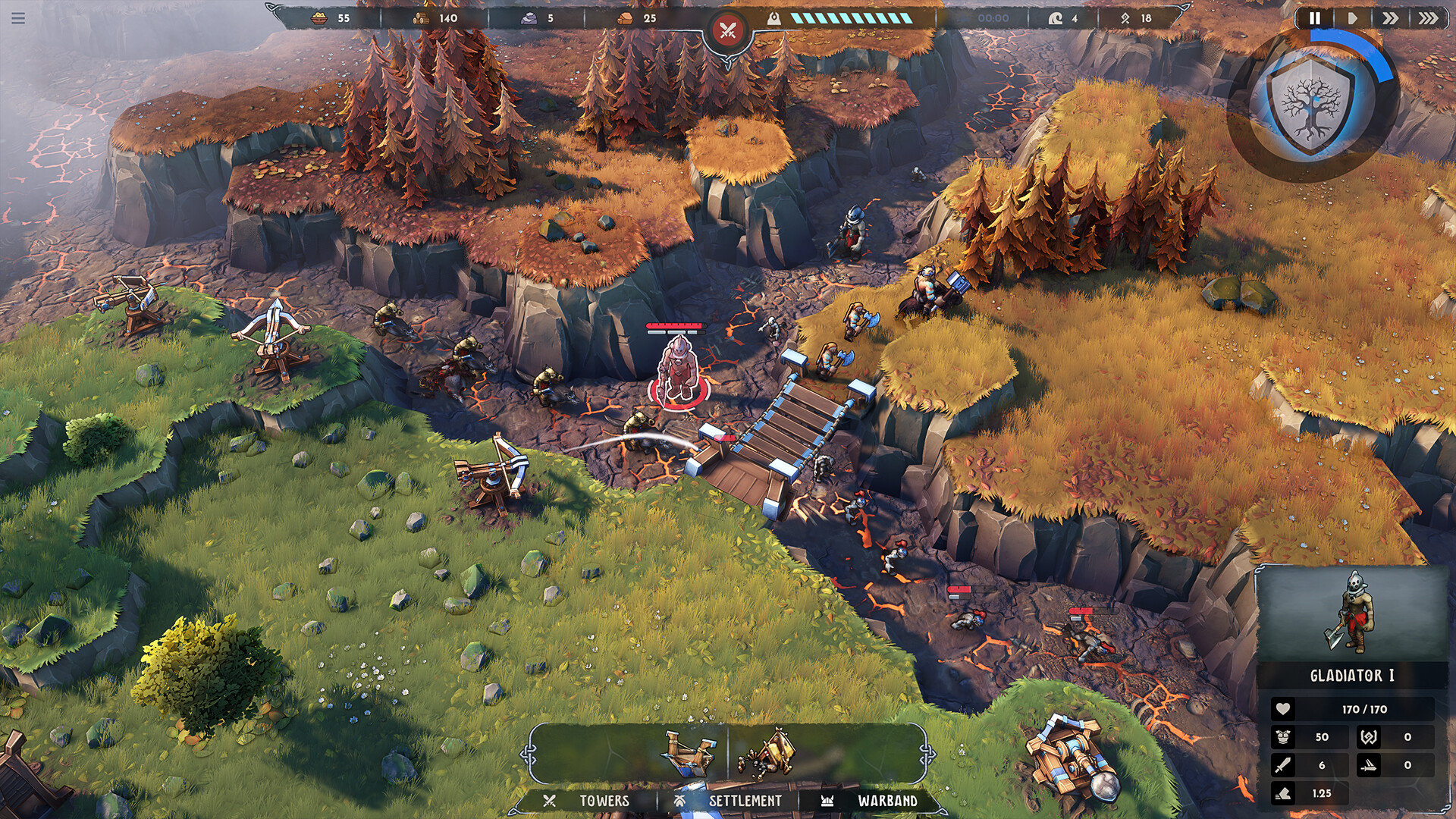
Dawn of Defense is a long single-player run: trench defense, island sieges, and a permanent meta tree of Runes that outlive any one attempt. Losing progress mid-fortress or after a Rune spend feels worse than a clean defeat. This page explains what launch promised about experimental autosave, what Steam lists for Cloud saves, when to pause mid-run, how to think about backups without inventing unverified Windows paths, and what a save actually protects. It is not a trainer, cheat, or inject guide—only legitimate Steam habits.
Pair this reference with system requirements if crashes look hardware-related, and with launch notes for the day-one feature list that introduced autosave.
Experimental autosave at launch
The November 17, 2026 retail build ships an experimental autosave system so mid-run progress is less brittle than a pure “quit and lose everything” loop. Experimental means useful, not finished. Expect later Steam notes to harden timing, edge cases after fortress clears, or behavior when you alt-tab during a siege. Until those notes land, assume:
- Autosave reduces pain; it does not guarantee a perfect restore after every crash.
- A clean exit after a fortress clear or major island take is still safer than yanking power mid-wave.
- If a patch mentions save or autosave, re-test on a short practice run before climbing Blood Moon.
Read patch language carefully on the Updates Hub and Steam news—do not rely on a Discord paraphrase alone when your meta tree is at stake.
Steam Cloud expectations
Steam’s feature list for Dawn of Defense includes Cloud saves alongside achievements and Family Sharing. That usually means Valve can sync eligible save data between machines signed into the same Steam account, subject to Steam’s own Cloud rules and the game’s implementation.
Practical expectations:
- Enable Steam Cloud for the game in the Steam client properties if you use more than one PC.
- Wait for sync after a session—closing Steam immediately after a long run can interrupt uploads.
- Watch conflict dialogs if you played offline on two machines; picking the wrong side can overwrite newer meta progress.
- Do not assume Cloud replaces local caution while autosave is still labeled experimental.
Cloud availability on the store page is not the same as “never back up.” Treat Cloud as convenience, not a warranty.
What a save protects: meta Runes vs mid-run state
Dawn of Defense has two progress layers players confuse:
Permanent meta (Runes and skill trees)
Between runs you spend Runes on permanent upgrades for units, towers, and related trees. That layer is the long-term account of power. Losing it hurts more than losing a single island. After large Rune spends, give the game a moment to write progress—finish the meta screen cleanly, return to the hub or menu, and avoid force-killing the process. Strategy for spending lives on meta progression.
Mid-run state
Inside a run you care about island ownership, trench pads, warband positions, fortress progress, and temporary Runestone picks. Autosave targets this brittle layer. A crash during a three-fortress campaign is exactly why experimental autosave exists—but until hardened, plan pauses around natural breakpoints: after a fortress relic choice, after a Bridge takes an island, or between waves when the horn is idle.
Knowing which layer you fear losing changes your habits. Meta anxiety → clean menu exits after Rune spends. Mid-run anxiety → pause at breakpoints and avoid updating Steam mid-siege when you can delay.
When to pause mid-run
Good pause moments:
- After clearing a fortress and resolving the relic pick.
- After capturing an island and placing the first economy buildings.
- Between waves, before you horn the next assault.
- Before you install a Steam update if you are deep into a Blood Moon climb and the client allows postponement.
Risky moments to walk away without a pause:
- Mid-Bridge fight with the hero committed and the Spiridun under pressure.
- During placement mode with a ghost building active.
- Immediately after a large Rune dump if you have not returned to a stable menu.
If you must leave the keyboard, use the in-game pause or menu rather than only locking Windows. Confirm in your settings that pause actually freezes the sim—hybrid TD/RTS titles sometimes keep menus open while waves continue.
Backup caution without invented paths
Community posts sometimes guess exact folders under AppData or Steam userdata. Do not trust a random path pasted from an unverified guide. 6side Studio may store data under Steam userdata for app 2781660, under a studio-named folder, or behind Steam Cloud only. Paths can also change after patches.
Safer approach:
- Check in-game settings and any official Steam news language about saves or Cloud.
- In the Steam client, open the game’s properties and confirm Cloud is enabled if you want sync.
- If you manually back up, locate the folder Steam or the game actually writes by checking recently modified files after a short play session—not by copying a blog path blindly.
- Copy to an external folder or archive while the game is closed.
- After any patch that mentions saves, verify you can still load a short run before deleting old copies.
Never download “save editors,” Rune injectors, or trainer packs. They risk corruption, Steam integrity failures, and wasted hours. Legitimate power comes from finishing runs and spending Runes—see Getting Started and meta progression.
Multi-PC and Family Sharing notes
If you bounce between a desktop and a laptop:
- Finish a session, exit to desktop, and wait for Cloud sync indicators before starting on the other machine.
- Avoid simultaneous launches on two PCs.
- Family Sharing follows Steam’s rules; shared play still writes to the active user’s save context—do not assume another profile’s meta tree is yours.
Hardware instability can look like “bad saves.” If the game hard-locks during particle-heavy sieges, verify specs and thermals on the system requirements page before blaming autosave alone.
After patches: re-verify, then climb
When Steam news mentions autosave, Cloud, or progress fixes:
- Update, boot, and complete a short tutorial or early-island run.
- Confirm meta Runes still display as expected.
- Only then resume a serious Blood Moon attempt.
- Skim the launch notes baseline if you need to remember what “experimental” meant on day one.
The Tools Hub links specs, controls, and this save reference together so mechanical issues stay separate from strategy mistakes.
Habits checklist
- Treat autosave as experimental until a later note says otherwise.
- Enable Steam Cloud if you use multiple PCs; wait for sync.
- Pause at fortress and island breakpoints before long AFK.
- Exit cleanly after big Rune spends on the meta tree.
- Back up only with the game closed, using folders you verified yourself.
- Reject cheat tools and edited save packs.
- Re-test loads after save-related patches.
Saves protect the story of your tribe’s war against the Imperium Aeternum—the meta tree you built and the run you were winning. Respect experimental systems, prefer official Steam behavior over rumor paths, and keep strategy progress earned in-game. For the wider reference set, return to the Tools Hub; for onboarding and Rune spending, continue with Getting Started and meta progression.
Frequently Asked Questions
Quick answers about Dawn of Defense and this wiki.
Does Dawn of Defense have autosave?
Yes. The November 17, 2026 launch build includes an experimental autosave system. Treat it as helpful but not infallible until later patches harden it.
Does Dawn of Defense support Steam Cloud?
Steam lists Cloud saves as a feature. Enable Cloud in the game’s Steam properties if you use multiple PCs, wait for sync after sessions, and still practice clean exits while autosave is experimental.
Where are the exact Windows save folders?
Do not trust unverified blog paths. Check in-game settings and Steam Cloud options, then confirm recently modified folders after a short session. Paths can change after patches.
What progress should I protect first?
Permanent meta Runes and skill-tree unlocks matter more than a single mid-run state. Exit cleanly after large Rune spends, and pause mid-run at fortress or island breakpoints.
Are save editors or trainers safe?
No. This wiki does not support cheat tools. Edited saves and trainers risk corruption and wasted progress—earn Runes through normal runs instead.